


Preface
I have long believed that most people need exactly one partition per drive. If you have several drives, give each one a single partition. If you have only one drive, two partitions, C and D, are the most you should carve out. I would give C at least 200 to 300 GB, and 512 GB if you use the machine heavily.
The reasoning is practical. You can install software somewhere else, but caches, temp files, user profiles, and update staging still land on C. Once C gets tight, apps start throwing errors and updates stop installing. Push it further and the machine will not boot at all. The other common failure is a big file or a game that would fit if the drive were one volume, but does not fit in any of the four small ones you created.
People also assume that installing software on D means a reinstall will not lose it. It usually does not survive. After a clean install, most of those programs will not run because their registry entries, services, runtime libraries, and per-user settings are gone. What you actually need to back up is narrower and more specific: QQ and WeChat chat history (usually under C:\Users\<username>\Documents), your Downloads folder, photos and videos, the Desktop, the Start Menu, plus C:\Users\<username>\NTUSER.DAT. That last file is your user registry hive, and after a reinstall it tells you which programs you had and what shortcuts sat on the desktop. Add important documents, passwords, and keys, and you have a complete list. If BitLocker is on, unlock the drive or export the recovery key before you touch anything. Then reinstall, reinstall your apps, and copy the files back.
Back when I was first learning to mess with PCs more than a decade ago, the older generation liked to slice a drive into four partitions. The partition tools that came with old OEM restore discs defaulted to four, and the habit stuck. Plenty of people who bought laptops on a relative's recommendation still end up with four tiny partitions today. I get called in to help classmates with a full C drive fairly often, and the routine is always the same: shuffle files between the other partitions until C has room.
If you think a small system partition and a handful of extra volumes are fine, my roommate's laptop is the counterexample.
Initial Guesses and Troubleshooting
The situation
My roommate's machine is an Asus laptop with Windows 11 Home preinstalled, updated over time to build 22631.5768. The 1 TB SSD was split into three data partitions: C got 150 GB, D and E got 389 GB each, and the remaining space went to Asus recovery and a few hidden partitions. C held MATLAB, SQL Server 2022, Office 2014, and a Steam library.
Then one day it blue-screened with BAD_SYSTEM_CONFIG_INFO, restarted itself, blue-screened again, and kept looping.
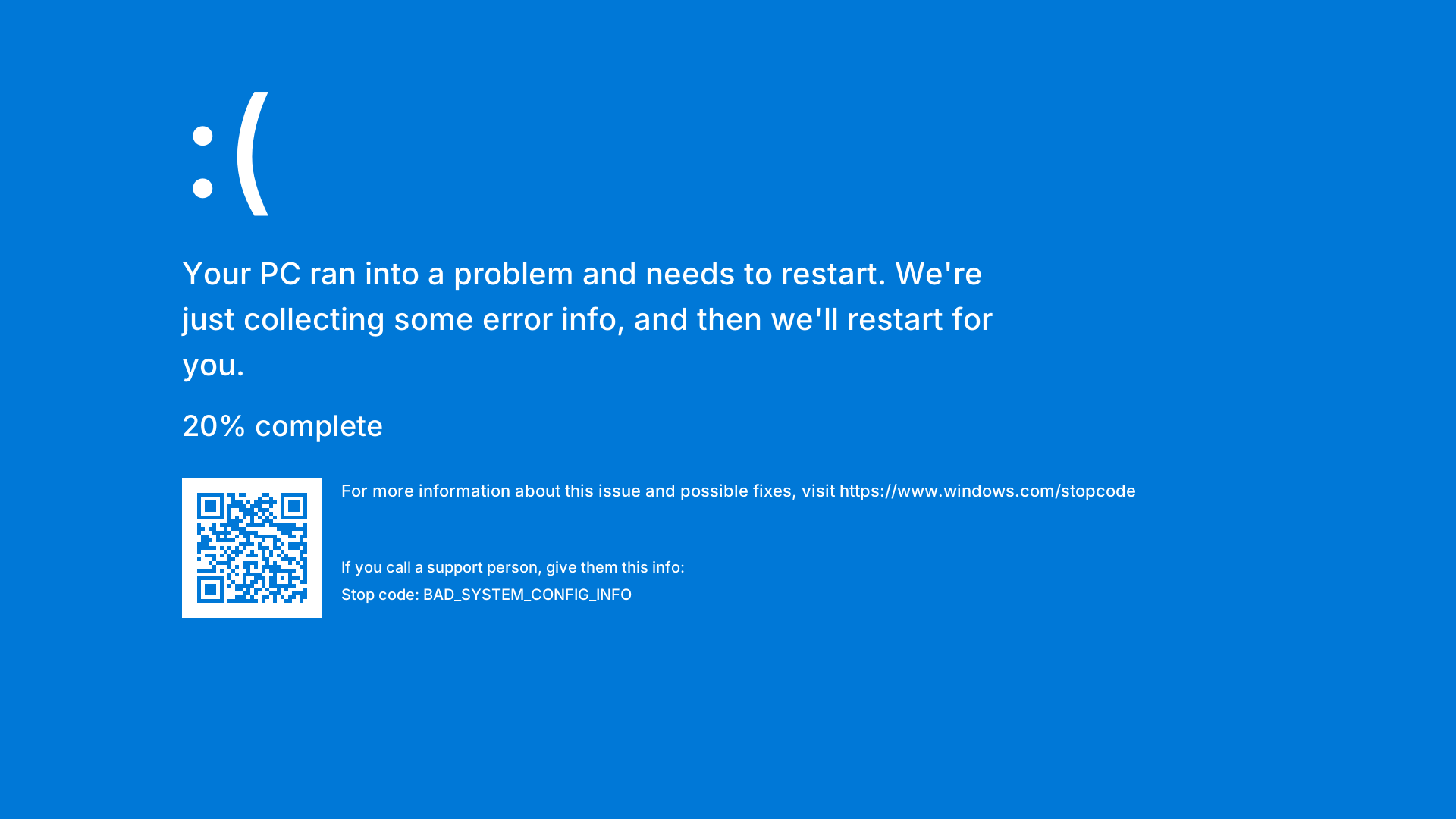
After the third restart, Windows decided startup had failed and entered automatic repair. The repair ran through its checks and accomplished nothing. The screen said Startup Repair could not fix the PC, and the log landed in C:\Windows\System32\Logfiles\Srt\SrtTrail.txt.
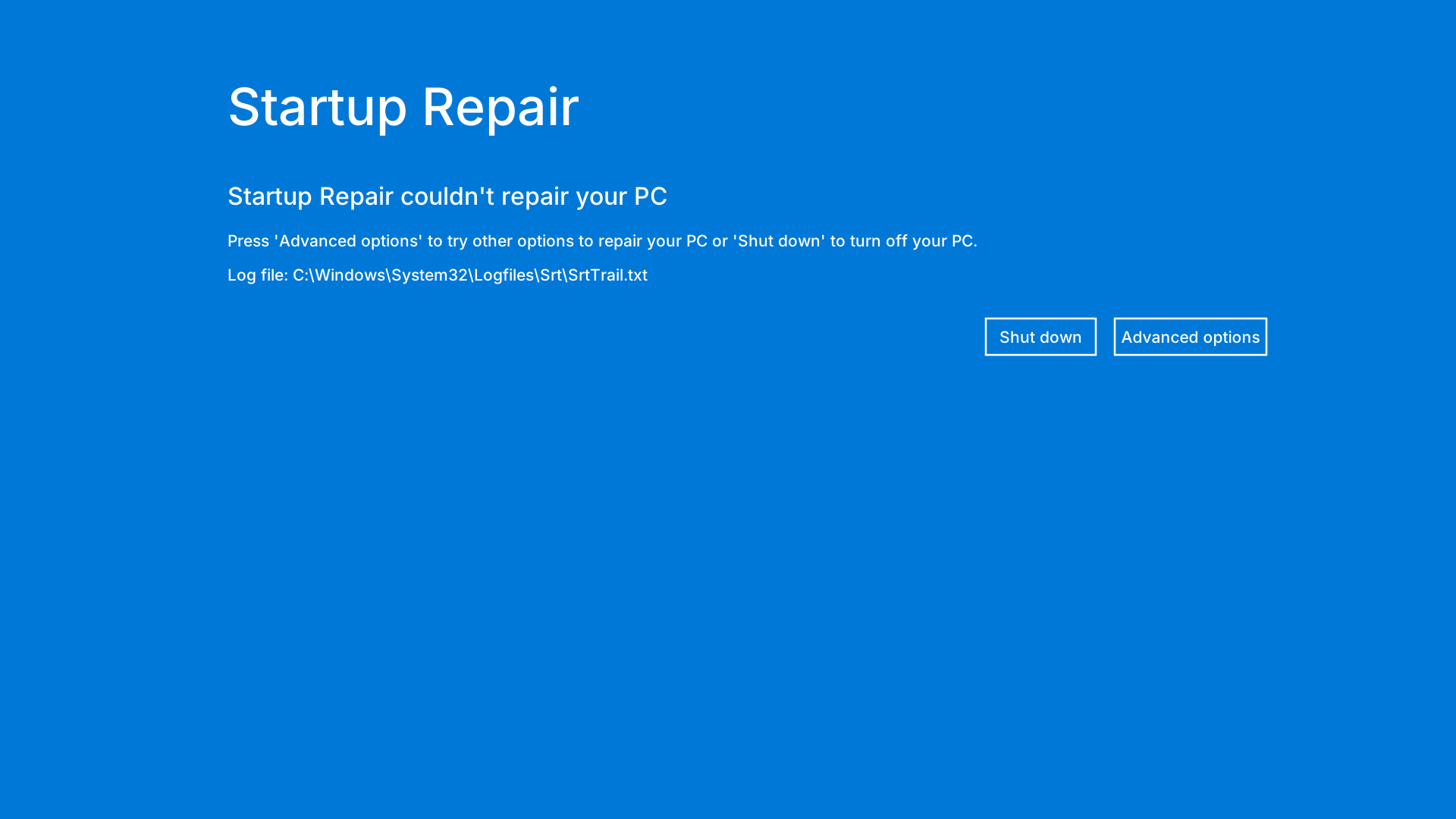
System Protection had never been enabled, so there were no restore points. The easy rollback path was closed before we started. My roommate had already spent time asking Dola for advice and followed a pile of suggestions: checking the disk, repairing the boot configuration, cleaning up space. Nothing worked. That is when he brought the laptop to me.
I asked what he had already tried. He had run chkdsk, which completed all five stages clean with zero bad sectors, and sfc /scannow, which failed to run but never reported a system file it needed to replace. A clean chkdsk rules out filesystem damage and failing NAND. An sfc run that never flags a corrupted file at least suggests the system files were not broadly destroyed. With both of those set aside, the problem most likely lived in the boot configuration or the registry.
Following that logic, I opened the offline system with DISM++ from a PE environment to repair the boot files. DISM++ immediately complained that it was trying to load a file in an inaccurate format. I did not read much into it at the time. I assigned a letter to the EFI system partition, rebuilt the boot files with bcdboot, and restarted. The blue screen was gone, replaced by a recovery screen with 0xc0000001.
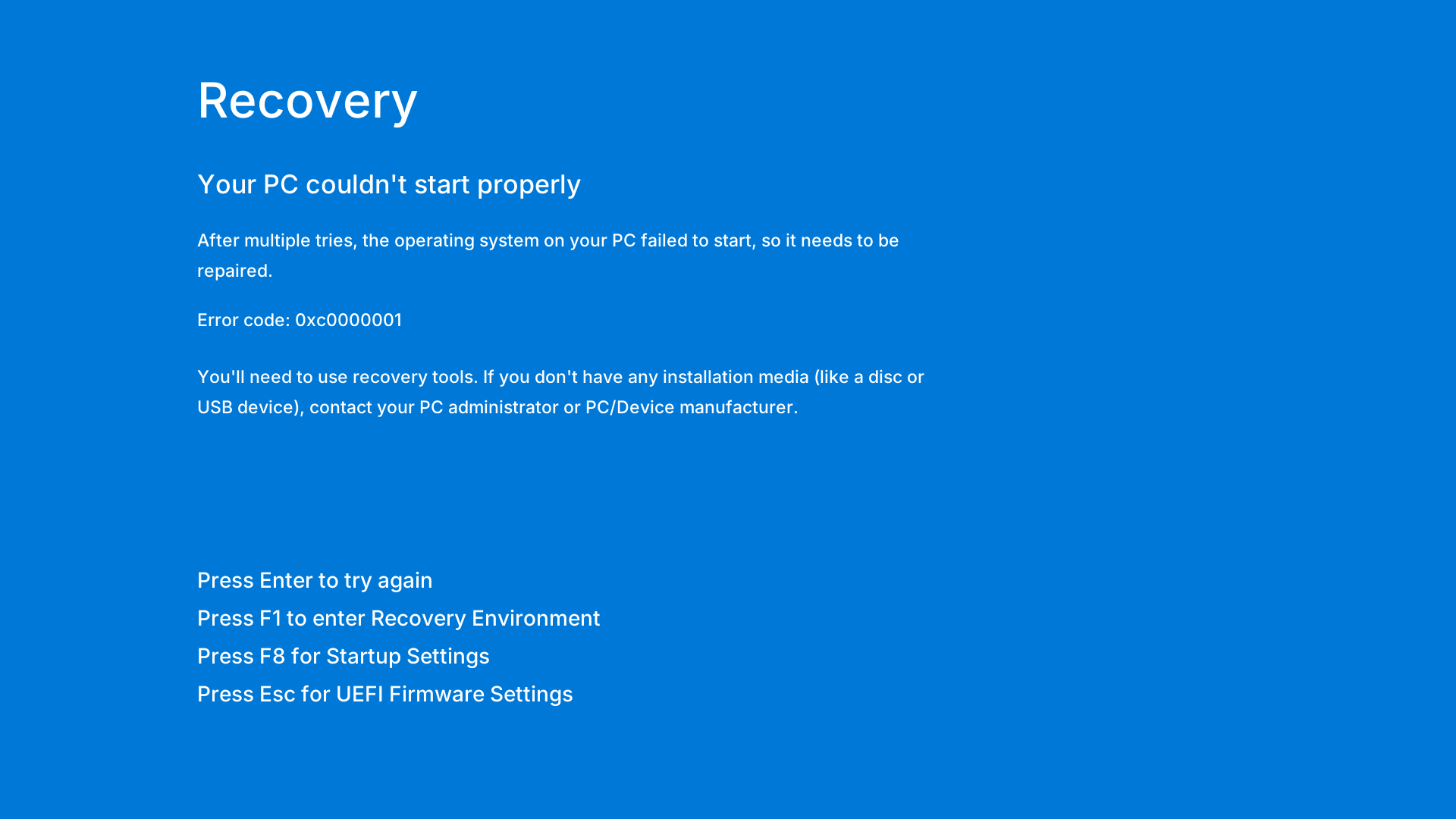
0xc0000001 is a generic wrapper around STATUS_UNSUCCESSFUL. It means some step in the boot chain failed, and it declines to say which one. But the DISM++ message was a real clue. To open an offline installation, DISM++ mounts the registry hives under config. If it cannot mount them, the message about an inaccurate format is exactly what you would see. That pointed at a broken hive, not a broken boot entry.
Turning off BitLocker
Before touching anything, I needed to know the encryption state. A lot of laptops ship with Device Encryption pre-provisioned and the recovery key escrowed to a Microsoft account. This machine used a local account. If it had actually been encrypted, there would have been nowhere to retrieve the key, and reading C from PE after a TPM measurement mismatch would have been impossible.
Check the status first:
manage-bde -status C:Protection Status: Protection Off
Lock Status: Unlocked
Identification Field: None
Automatic Unlock: Disabled
Key Protectors: None Found"Key Protectors: None Found" is good news. Device Encryption only becomes real after a key protector is created, and creating one normally requires signing in with a Microsoft account so the key can be escrowed. This machine never got that far. The volume was in the pre-provisioned state without ever being locked, so C was plain NTFS and readable from PE.
I confirmed with a second command:
manage-bde -protectors -get C:Volume C: [OS]
All Key Protectors
ERROR: No key protectors found.No protector means no key to lose. I also listed the disks to see where the EFI and recovery partitions sat:
DISKPART> list vol
Volume ### Ltr Label Fs Type Size Status Info
---------- --- ----------- ----- ---------- ------- --------- --------
Volume 0 C OS NTFS Partition 150 GB Healthy
Volume 1 D NTFS Partition 389 GB Healthy
Volume 2 E NTFS Partition 389 GB Healthy
Volume 3 RESTORE NTFS Partition 24 GB Healthy
Volume 4 SYSTEM FAT32 Partition 260 MB Healthy Hidden
Volume 5 RECOVERY NTFS Partition 950 MB Healthy Hidden
Volume 6 H MYASUS FAT32 Partition 260 MB Healthy Hidden
Volume 7 F Ventoy exFAT Removable 117 GB HealthyVolume 4, the 260 MB FAT32 partition, is the EFI System Partition. Boot files go there. Volume 5 is Windows Recovery Environment, and volume 3 is Asus's factory restore image.
Even though nothing was encrypted, I ran the decrypt command on C, D, and E:
manage-bde -off C:
manage-bde -off D:
manage-bde -off E:
The point was not to decrypt existing data. It was to make sure that a later TPM measurement change could not silently lock the volume on the next boot. On an unencrypted volume the command is a no-op, but it removes the risk of a recovery prompt appearing in the middle of the repair.
Trying the standard playbook
The standard first move is to mount the ESP and rebuild the boot files:
DISKPART> select volume 4
DISKPART> assign letter=S
DISKPART> exit
X:\Windows\System32>bcdboot C:\Windows /s S: /f UEFI /l zh-cn
Boot files successfully created.bcdboot copies the boot manager and language resources from C:\Windows\Boot to the ESP and writes a matching entry into the BCD store. "Boot files successfully created" tells you the ESP is writable and the copy worked. As a belt-and-suspenders measure I also copied bootmgfw.efi over bootx64.efi, so the firmware's default path resolves to the same loader:
copy S:\EFI\Microsoft\Boot\bootmgfw.efi S:\EFI\Boot\bootx64.efiNext came bootrec, the old standby from the BIOS era that people reach for first:
X:\Windows\System32>bootrec /scanos
Scanning all disks for Windows installations...
Total identified Windows installations: 0
The operation completed successfully.
X:\Windows\System32>bootrec /rebuildbcd
Scanning all disks for Windows installations...
Total identified Windows installations: 0
X:\Windows\System32>bootrec /fixboot
Access is denied.All three failed. scanos found zero installations and fixboot refused outright. The reason is not mysterious. bootrec decides whether a Windows installation exists by reading volume mappings and storage controller configuration from the offline registry. If the registry cannot be read, it treats the disk as having no operating system. The failure is a symptom, not the disease.
Next, the filesystem and the component store:
X:\Windows\System32>chkdsk C: /f
The type of the file system is NTFS.
Volume label is OS.
...
Windows has scanned the file system and found no problems.
No further action is required.
157286727 KB total disk space.
15979136 KB available.Five stages, all clean, zero bad sectors. The filesystem is fine, so that branch is closed.
X:\Windows\System32>sfc /scannow /offbootdir=C:\ /offwindir=C:\Windows
Beginning verification phase of system scan.
Windows Resource Protection could not perform the requested operation.
That error is common offline. It usually means the component store or the service session could not be initialized. It did not tell us which files were damaged.
X:\Windows\System32>dism /Image:C:\ /Cleanup-Image /RestoreHealth
Error: 87
DISM does not recognize the command-line option "/Image:C:\".Error 87 is a parameter error. I had fat-fingered the colon, so DISM parsed the argument into something that was not a valid image path. That kind of slip costs real time because it looks like the tool itself is broken, and you start checking DISM versions instead of your typing. Retyping it correctly surfaced the real error:
X:\Windows\System32>dism /Image:C:\ /Cleanup-Image /RevertPendingActions
Deployment Image Servicing and Management tool
Version: 10.0.22621.1
Image Version: 10.0.22631.5768
Reverting pending actions from the image...
Error: 0xd000014c/RevertPendingActions is supposed to undo an update transaction that never finished. When an update is interrupted mid-install, CBS records the pending actions in the component store, and the next normal boot either completes or rolls them back. Now the revert itself was failing with 0xd000014c.
Add the client bit and 0xd000014c becomes 0xC000014C, STATUS_REGISTRY_CORRUPT. DISM cannot do anything with an offline image until it mounts the hives under config. If one of them will not mount, every command that depends on the component store fails the same way.
Enumerating packages hit the same wall:
X:\Windows\System32>dism /Image:C:\ /Get-Packages /Format:Table
...
Error: 0xd000014c
DISM failed. No operation was performed.By then the boot theory was dead and the filesystem theory was dead. Something in the registry was broken.
The startup repair log told the same story from a different angle. SrtTrail.txt opens with:
Last successful boot time: 2026/11/1 9:32:11 (GMT)
Number of repair attempts: 64
Each repair session runs about a dozen tests. Disk, volume contents, boot manager, event log all came back 0x0. Only the last test failed:
Session 1  Name: Check for installed LCU   Result: completed successfully. Error code = 0x43
Session 2  Number of root causes = 1
           Root cause found:
           Startup Repair has tried several times but still cannot determine the cause of the problem.
Session 3  Name: Check for installed LCU   Result: completed successfully. Error code = 0x14c
"Check for installed LCU" reads the list of update packages from the component store. That requires a CBS store, and a CBS store requires the registry. The 0x14c in session 3 matches DISM exactly. The 0x43 in session 1 is a sharing violation, and I will come back to it because I caused it.
At that point I tried the control set trick that shows up in every forum thread. SYSTEM usually carries ControlSet001 and ControlSet002, Select\Current says which one is active, and if the active one is damaged you can sometimes point LastKnownGood at the other. I mounted SYSTEM, read Select, and found Current was already 1 while ControlSet002 had been reduced to a single key. There was nothing useful to switch to.
What actually changed the direction was a detail my roommate mentioned almost in passing. I asked how much free space C had. He opened Explorer and said a little over 100 MB. He had deleted a few large files from the desktop earlier, which brought it back to around 8 GB. That number fits the failure shape exactly. When a volume fills up mid-write, a transaction can land its data without committing, leaving the hive in an in-between state.
The DISM repair log confirmed the sequence. In C:\Windows\System32\Logfiles\Srt\DISMRepairLogFile.txt, the offline hives load in the order SOFTWARE, SYSTEM, SECURITY. The first two succeed. The third fails every time:
Failed to load offline \\?\C:\Windows\System32\config\SECURITY hive ...
Failed to load offline registry: {...}C:/Windows/System32/config/SECURITY [HRESULT = 0xd000014c - NTSTATUS Error]
Failed to load offline SECURITY hive. [HRESULT = 0xd000014c - NTSTATUS Error]
Failed to load offline store from boot directory: '\\?\C:\' and windows directory: '\\?\C:\Windows\' [HRESULT = 0xd000014c]
SECURITY holds local security policy, account secrets, and the DPAPI master key. If it will not load, the CBS store cannot initialize, and every command that needs the store fails with the same code.
Putting that together with 100 MB of free space, my working theory was that an update was writing SECURITY when the disk filled, the write was truncated, and the hive was left mid-transaction. To revive the machine, it had to become loadable again.
The original hive was damaged and we had no backup. So I came up with a clever idea. Copy SECURITY from my own laptop. Both machines ran Windows 11, both files were 65536 bytes, and the structure should be compatible. I moved the roommate's hive into config\CorruptBak\ for safekeeping and dropped mine in.
The behavior changed immediately. The same RevertPendingActions that had been failing with 0xd000014c now finished:
X:\Windows\System32>dism /Image:C:\ /ScratchDir:D:\backup /Cleanup-Image /RevertPendingActions
...
Reverting pending actions from the image...
The operation completed. A restart will attempt to revert the pending actions.
The operation completed successfully.
I deleted WinSxS\pending.xml, ran chkdsk C: /f again, and restarted. It still would not boot. The error code had changed from 0x74 to 0xc0000001.
That was deflating, because DISM was working and the hard part should have been over. Worse, the "fix" had turned "the file will not load" into "the file is not from this machine," and the second problem is much harder to see because every tool reports success.
At that point the standard playbook was exhausted. The laptop was still sitting in PE. I switched to a network-enabled FirPE image, installed omp, and handed the read-only investigation to an AI agent.
Deep Dive with an AI Agent
Which hive does 0xd000014c actually mean
The first job was to pin down which step failed. All we knew was that DISM reported 0xd000014c. DISM loads three hives in sequence, and the log says which one broke, but the line is buried among thousands.
Start by listing config to rule out zero-byte files, since that is the first thing most guides tell you to check:
X:\Windows\System32>dir C:\Windows\System32\config
2026/10/31  21:18         1,310,720 BBI
2026/11/02  14:09            28,672 BCD-Template
2022/06/03  08:32    <DIR>          BFS
2026/10/31  17:30        32,768,000 COMPONENTS
2026/11/01  17:32         6,029,312 DEFAULT
2026/10/31  20:29         8,777,728 DRIVERS
2025/05/10  08:51            32,768 ELAM
2022/05/07  13:24    <DIR>          Journal
2022/05/07  13:24    <DIR>          RegBack
2026/10/31  21:18           131,072 SAM
2026/10/31  21:18            65,536 SECURITY
2026/11/02  13:56       117,440,512 SOFTWARE
2026/11/02  13:56        32,243,712 SYSTEM
Not a single zero-byte file. SECURITY is the standard 65536 bytes. Size alone proves nothing, but it rules out the "hive got truncated to nothing" case that most tutorials assume.
Next, load SYSTEM by itself to see whether it is actually damaged:
X:\Windows\System32>reg load HKLM\TEMP C:\Windows\System32\config\SYSTEM
The operation completed successfully.
SYSTEM loads. That eliminated the most popular suspect. I had been convinced it was SYSTEM, because BAD_SYSTEM_CONFIG_INFO is associated with it everywhere online, and every case study I found was about repairing a broken SYSTEM.
The answer was in two other places: the crash dump and the DISM log.
The first was the crash dump. Reading the header of C:\Windows\Minidump\110226-9312-01.dmp gives:
signature   = PAGE / DU64
major/minor = 15.22621
bugcheck    = 0x74  (BAD_SYSTEM_CONFIG_INFO)
P1 = 0x2
P2 = 0xffff94869fbd2940
P3 = 0x1
P4 = 0xffffffffc000014c
crash time  = 2026-11-02 07:36:19 UTC (= 15:36 local)
ASCII       = "HiveLoadFromomFile" + "status"
UTF-16      = "<SECURITY"
P4 = 0xC000014C is STATUS_REGISTRY_CORRUPT. The dump also preserves a snippet of kernel strings, and the UTF-16 one is <SECURITY, meaning the failure happened while loading that hive. The doubled om in HiveLoadFromomFile is not a transcription error on my part. The kernel's string concatenation leaves it that way.
The second was the full DISM log. Pulling out the load failures gives a span from November 1 at 17:35 to November 2 at 13:55:
2026-11-01 17:35:29  SECURITY  0xd000014c
2026-11-01 17:37:01  SECURITY  0xd000014c
2026-11-01 21:45:55  SECURITY  0xd000014c
2026-11-01 21:47:30  SECURITY  0xd000014c
2026-11-01 21:48:30  SECURITY  0xd000014c
2026-11-01 22:13:43  SECURITY  0xd000014c
2026-11-01 22:16:57  SECURITY  0xd000014c
2026-11-02 11:05:03  SECURITY  0xd000014c
2026-11-02 11:13:58  SECURITY  0xd000014c
2026-11-02 11:42:04  SECURITY  0xd000014c
2026-11-02 12:50:55  SECURITY  0xd000014c
2026-11-02 13:55:22  SECURITY  0xd000014c
2026-11-02 15:21:12  SYSTEM    0xd0000043
Twelve failures, all SECURITY, all 0xd000014c. The single SYSTEM entry at the end is a different code, 0xd0000043, STATUS_SHARING_VIOLATION. That one is my fault. I had manually run reg load on SYSTEM to read Select and forgot to unload it, so the next DISM run collided with my mount. It is an artifact of the investigation, not part of the failure. This matters, because seeing "SYSTEM failed to load too" is exactly the kind of thing that sends you in the wrong direction.
The log also shows the CBS load order:
Loading offline registry hive: SOFTWARE, into registry key '{bf1a281b-...}C:/Windows/System32/config/SOFTWARE'
Loading offline registry hive: SYSTEM, into registry key '{bf1a281b-...}C:/Windows/System32/config/SYSTEM'
Loading offline registry hive: SECURITY, into registry key '{bf1a281b-...}C:/Windows/System32/config/SECURITY'
Failed to load offline SECURITY hive. [HRESULT = 0xd000014c]
The first two succeed and the third fails. CBS initializes serially, so one failure kills the whole store. That is why Get-Packages, RevertPendingActions, sfc, and bootrec all failed in their own ways while sharing a single root cause.
A fix that only looked like one
The hive I had copied in needed to explain itself, so I mounted it and read two identity values:
Computer name   HXCN-WIN
Machine SID     S-1-5-21-1262172508-...
Then the local SAM:
Computer name   LAPTOP-VQ......
Machine SID     S-1-5-21-4291209427-...
Two completely different identities. A SECURITY hive carries two important values: PolAcDmN holds the computer name, and PolAcDmS holds the machine's domain SID. Here PolAcDmS pointed at S-1-5-21-1262172508-... while SAM insisted the machine was S-1-5-21-4291209427-.... LSA validates that during startup and refuses to initialize.
The secrets were worse. SECURITY\Policy\Secrets holds the local security authority secrets, and the most important one is DPAPI_SYSTEM, the master key behind DPAPI. Browser passwords, EFS-encrypted files, and Credential Manager entries all derive from it. The foreign hive contained NL$KM, M$_MSV1_0_TBAL_PRIMARY_{22BE8E5B-...}, DefaultPassword, and MouseWithoutBorders. It did not contain DPAPI_SYSTEM at all.
So even if LSA had let it through, every piece of data encrypted with the local DPAPI key would have been permanently unreadable. Swapping in a hive that loads only converts "the file will not open" into "the file is not yours."
DISM succeeding tells you the file is structurally valid. The machine booting tells you the file belongs to this machine. Those are different checks, and DISM only performs the first one, which is why it happily reports success.
The real hive had been sitting in config\CorruptBak\ the whole time: 65536 bytes, a copy from October 31 at 21:18. I copied it out and started over.
Sequence numbers 17965 and 17964
A registry hive is a binary file. The first 4 KB is a fixed header, and the rest is a series of 4 KB aligned hbin blocks. The header fields we care about sit at fixed offsets:
offset 0x000   "regf"                signature
offset 0x004   seq1                  primary sequence number
offset 0x008   seq2                  secondary sequence number
offset 0x01C   type                  hive type
offset 0x024   root                  offset of the root nk cell
offset 0x028   hbins                 total size of the bins area
offset 0x1FC   checksum              header checksum
seq1 and seq2 are a pair of transaction counters. When the kernel modifies a hive, it increments seq1, writes the data, and then increments seq2. If both increments land, the transaction committed. If only the first one did, the write was interrupted by a power loss or a failed write, and the file is in an intermediate state. That is the dirty flag, and it shows up as seq1 != seq2.
The checksum covers the first 0x1F8 bytes of the header, four bytes at a time, XORed together. Two edge cases matter: if the XOR result is 0xFFFFFFFF, store 0xFFFFFFFE; if it is 0, store 1.
Reading the original:
CorruptBak\SECURITY 65,536 B seq 17965 / 17964 checksum 0xb3d51b08 (self-consistent)seq1 = 17965, seq2 = 17964, dirty. The stored checksum matches a fresh calculation, so the header itself was not corrupted. It simply never finished the transaction.
The intended repair path is log replay. When the kernel sees a dirty hive, it looks for matching .LOG1 and .LOG2 files, checks whether their sequence numbers line up, and replays them to finish the interrupted write. The logs here were useless:
SECURITY.LOG1   49,152 B   seq 208    (stale, from 2022)
SECURITY.LOG2    8,192 B   seq 17963  (two transactions behind the hive)
With the hive at 17965/17964, a replayable log would have to be at 17965 or 17964. LOG1 stopped at 208 and LOG2 at 17963. The chain was broken and replay was impossible.
The three System volume has 0G free disk space lines from October 23 are the most plausible explanation. The disk filled during a write, the data landed, the commit marker did not, and the logs fell behind. That is an inference, not direct evidence. The CBS lines prove the volume was full, not which hive was being written at that moment.
Which raised the question: could we clear the dirty flag without replaying anything?
To avoid gambling with the real file, I ran every combination on copies in D. Nothing touched C.
The result was cleaner than expected: any mismatch between seq1 and seq2 blocks the load, regardless of whether logs exist, whether they are zero bytes, or whether they could be replayed. The dirty flag alone is fatal.
Once seq1 == seq2 and the checksum is correct, stale logs sitting next to the hive change nothing. Case j proves it: the old log files were still there, the hive was clean, and the kernel accepted it without looking at them.
The checksum has to be recalculated. Case s4 had matching sequence numbers and only the checksum left stale, and it still failed. The kernel validates the header first and looks at the sequence numbers after.
So the repair surface is two fields:
source  C:\Windows\System32\config\CorruptBak\SECURITY    65,536 B   17965 / 17964
change  0x008  write 17965                                            (clear dirty flag)
change  0x1FC  recompute checksum   0xb3d51b08  ->  0xb3d51b09
That is two bytes of difference, and no data is touched. Before committing to it, I walked the whole file structurally: header signature, sequence numbers, checksum, hbin chain continuity, then a full traversal from the root key checking every nk cell's parent pointer, its li/lf/lh/ri subkey index, and its value list, followed by a count of allocated but unreachable cells. The result was 166 keys, 164 values, zero parent pointer errors, all subkey indexes valid lh cells, two intact security descriptors, every reachable cell inside the declared hbins boundary, and zero orphans.
I also confirmed the hive belonged to this machine:
PolAcDmN   LAPTOP-VQ......                        <- matches SYSTEM\ComputerName
PolAcDmS   S-1-5-21-4291209427-...  <- matches the SAM domain SID
Policy\Secrets   8 entries, including DPAPI_SYSTEM, RasDialParams!...-1001#0, 6 MSSQL/SQL service accounts
root LastWriteTime   2026-11-01 09:32:10 UTC       <- matches "last successful boot 11/1 17:32 local"
Policy\Accounts contains -501, -1002, and -1003 but not -1001, while SAM has an account with RID 1001. That is not a defect. LSA creates account entries on demand the first time a SID is used, and this machine had probably not used that account for anything that writes a policy entry since it was last reinstalled.
The dirty BBI hive and the orphaned driver
Since I had already written scripts to check every hive, I ran them across all nine. Besides SECURITY, one more would not load: BBI, 1310720 bytes, sequence numbers 53232/53231, also dirty, with zero-byte LOG1 and LOG2.
BBI is not boot configuration. It is the Boot Environment Infrastructure work queue, holding 81 WorkItems, 1431 PackageImportance entries, and 136 Events. A dirty BBI will not blue-screen you. It had been dirty since October 31 and the machine booted on November 1 anyway. But it was the only other structurally unloadable hive, and every attempt to read the queue would fail. Since the repair is identical, I fixed it too.
The boot driver audit turned up something real:
HKLM\SYSTEM\ControlSet001\Services\softaal
  ImagePath    = \??\C:\Program Files (x86)\Tencent\QQPCMgr\15.1.22354.301\softaal64_ev.sys
  Start        = 1  (SERVICE_SYSTEM_START)
  ErrorControl = 0
Tencent PC Manager had updated to 15.6 and removed the 15.1 directory, but the service entry still pointed at the old path. Start = 1 means the kernel tries to load it during boot, and ErrorControl = 0 means a failure is ignored. The combination costs a failed file lookup on every boot. It cannot blue-screen the machine, but it is dead weight.
Setting Start to 4 disables it. The kernel skips it at boot, ImagePath stays as it was, and re-enabling it later is a one-value change.
A few other services point at missing files: ksapi64 (Start=2), ROGKB (Start=3), ROGMS (Start=3), and TSSKX64 (Start=3). All of them start after the kernel is up, so they had nothing to do with this failure. TSSKX64 is a nice example of installer sloppiness: the registry says tsskx64_EV.sys, the disk has TSSKX64.sys, and neither the case nor the _EV suffix matches.
ControlSet002 is almost empty, holding only Services\kisknl, which points at a kisknl.sys that does not exist. Select\Current = 1, so that control set is inactive. On a healthy machine it would be the previous boot's configuration. How it got reduced to one key is unclear, and it has nothing to do with this incident.
The Fix
Why the ISO's SYSTEM hive is only 9 MB
I had Win11_23H2_Chinese_Simplified_x64v2.iso, build 22631.2861. The obvious move is to pull a clean hive out of it and overwrite the broken one. That does not work, and it is worth showing why.
Mounting install.wim and listing Windows\System32\config\ gives:
The image's config directory is a generic install state, the template that exists before OOBE tailors it to a machine. Its SYSTEM is 9 MB with the computer name MINWINPC and 661 services. The local SYSTEM is 32 MB with 846 services, carrying the device tree and driver configuration for this specific motherboard, storage controller, and GPU. Overwriting it makes the kernel guess at hardware, and guessing wrong produces INACCESSIBLE_BOOT_DEVICE.
SAM and SECURITY are worse. The image's SAM is an 8 KB empty database, so every account disappears. Its SECURITY is an 8 KB blank, so the LSA secrets and DPAPI master key disappear with it.
In-place upgrade repair is also blocked. The image build is 22631.2861, older than the installed 22631.5768, and setup refuses on the version comparison alone.
The correct use for this image is as a comparison baseline. Service counts, driver inventories, key values in SYSTEM, and the structure of BBI all get checked against the image to separate normal variation from actual defects. It is not a parts bin.
One concrete example. The boot driver audit flagged wof, null, npfs, msfs, cimfs, and beep as having no ImagePath, which looked like damage. Comparing against the image's SYSTEM showed the same six services with the same missing value. They are built into the kernel and never had a path. Without a baseline, that is an afternoon wasted.
BBI is the one exception. It is not bound to a machine identity, and the image's 8,192-byte empty queue carries the same GUID as the local one. If the local copy had been beyond repair, overwriting with the image's BBI would have been safe, at the cost of 81 queued work items. We repaired the local copy instead, so the queue survived.
I also ran a controlled check: copy the image's BBI to D, add the machine's BBI{a2332f30-...}.TM.blf and two .regtrans-ms containers alongside it, and load it. It loaded, stayed at 8,192 bytes, and still had zero keys. Old transaction containers do not replay content into a clean empty hive, so the overwrite path is safe.
Back up, then patch exactly two bytes
Before changing anything, back up the whole config directory to D:
xcopy C:\Windows\System32\config D:\_fix\backup_20261102120607\config\ /E /H /YThat produced 43 files and 249,708,544 bytes (238.1 MB), including all nine hives plus every .LOG1, .LOG2, .TM.blf, and .regtrans-ms. I hashed each file with SHA-256 and compared it to the source. All matched. The point is simple: any later step can be reversed byte for byte.
The patch itself goes onto a working copy in D first, and only reaches C after it loads:
copy C:\Windows\System32\config\CorruptBak\SECURITY D:\_fix\stage\SECURITYOpen the copy in a hex editor and make two changes:
offset 0x008   2c 46 00 00  ->  2d 46 00 00     seq2 = 17964 -> 17965
offset 0x1FC   b3 d5 1b 08  ->  b3 d5 1b 09     recompute header checksum
Writing the same value at 0x008 that already sits at 0x004 makes seq1 == seq2 and clears the dirty flag. The checksum at 0x1FC has to be recalculated because the byte at 0x008 changed from 0x2c to 0x2d, which shifts the XOR result from 0xb3d51b08 to 0xb3d51b09.
Load the patched copy as a self-check:
reg load HKLM\CHK D:\_fix\stage\SECURITY
The operation completed successfully.
Then read the identity back out to confirm the data is intact:
PolAcDmN   LAPTOP-VQ......
PolAcDmS   S-1-5-21-4291209427-...
Policy\Secrets   8 entries, including DPAPI_SYSTEM
Identity matches, secrets present, key and value counts unchanged. Only then write it to C:
copy /y D:\_fix\stage\SECURITY C:\Windows\System32\config\SECURITYAfter that, quarantine the two stale logs:
move C:\Windows\System32\config\SECURITY.LOG1 D:\_fix\quarantine\
move C:\Windows\System32\config\SECURITY.LOG2 D:\_fix\quarantine\
Strictly speaking this is optional. Case j already proved the kernel ignores logs when the hive is clean. Moving them does two things, though. It removes ambiguity for anyone who looks at the directory later and wonders whether a replay is pending, and it lets the kernel rebuild clean logs on the next mount, with sequence numbers starting from the current hive. After the first mount, SECURITY.LOG1 (36,864 bytes) and SECURITY.LOG2 (0 bytes) reappear on C. Those are new files.
BBI gets the same treatment. It sat at 53232/53231, so 0x008 becomes 53232, the checksum at 0x1FC is recomputed, reg load verifies it, and it goes back to C. All 81 WorkItems, 1431 PackageImportance entries, and 136 Events survived.
For softaal, mount SYSTEM, change the value, and unmount:
reg load HKLM\SYS C:\Windows\System32\config\SYSTEM
reg add "HKLM\SYS\ControlSet001\Services\softaal" /v Start /t REG_DWORD /d 4 /f
reg unload HKLM\SYS
Do not skip reg unload. That is exactly how the 0xd0000043 earlier got created.
Clearing the hibernation file and update leftovers
With the hives loadable, C was still tight. The machine had a 6.25 GiB hibernation file:
C:\hiberfil.sys 6,715,396,096 bytesIts job is to hold a memory image so the next boot can resume in place. A normal shutdown marks the header invalid, and only a hibernate writes a valid one. The first 4 KB of this file were all zeros, meaning the header was already dead and winresume could never restore anything from it. The BCD still had four resumeobject entries pointing at it, so the loader tried and failed on every boot.
Delete it:
del /f /q C:\hiberfil.sysThen turn hibernation off so the system does not recreate it:
reg load HKLM\SYS C:\Windows\System32\config\SYSTEM
reg add "HKLM\SYS\ControlSet001\Control\Power" /v HibernateEnabled /t REG_DWORD /d 0 /f
reg unload HKLM\SYS
hiberfil.sys is a protected system file. Deleting it from PE works directly. From a running system you would run powercfg -h off first.
Next, the update and reset leftovers:
rmdir /s /q C:\$WinREAgent
rmdir /s /q C:\$Windows.~BT
rmdir /s /q C:\$SysReset
rmdir /s /q C:\Windows\SoftwareDistribution\Download
These are WinRE update rollback data (1,771 MB), in-place upgrade staging (56.7 MB), reset logs (0.3 MB), and the update download cache (65.5 MB), roughly 1.9 GB total. Before deleting them I confirmed nothing was pending: SetupType = 0, SystemSetupInProgress = 0, OOBEInProgress = 0, no WinSxS\pending.xml, and an empty PackagesPending. With no pending operations they are pure garbage.
After all of that, fsutil volume diskfree C: reported 16.5 GB free. That is the whole arc: a bit over 100 MB when I took over, around 8 GB after my roommate cleared his desktop, and 16.5 GB once the hibernation file and update debris were gone.
Verification
"It loads" is not a verification. All nine hives went through four layers of checks: header signature, sequence numbers, checksum; hbin chain continuity; a full traversal from the root checking parent pointers, subkey indexes, and value lists; and a final count of orphan cells.
hive         bytes        sequence        dirty  checksum  keys      values
SYSTEM       32243712     395834/395834   no     OK        91,391    194,730
SOFTWARE     117440512    937587/937587   no     OK        372,888   640,232
SAM          131072       3911/3911       no     OK        80        100
SECURITY     65536        17970/17970     no     OK        166       164
DEFAULT      6029312      238433/238433   no     OK        8,201     10,937
DRIVERS      8777728      4850/4850       no     OK        36,424    52,954
COMPONENTS   32768000     9216/9216       no     OK        61,793    197,776
ELAM         32768        13/13           no     OK        1         0
BBI          1310720      53233/53233     no     OK        1,652     10,129
Zero parent pointer errors, zero subkey table errors, zero value list errors, zero broken hbin chains, zero orphans. All nine load with reg load.
SECURITY shows 17970, not the 17965 we wrote. That is not a new problem. Every reg load increments the sequence numbers and stamps each nk cell with a mount marker, so each self-check nudges the counter forward. Whether the content changed has to be answered with a semantic comparison, not the counter.
Comparing the current file to the CorruptBak original gives 166 keys and 164 values on both sides, with identical key names, value names, value types, and value data. Zero differences. At the byte level there are 182 differences, and every one falls into a known category: the root nk's Parent (1 byte), VolatileSubKeyCount (1 byte), VolatileSubKeyList (4 bytes), and the AccessBits byte on all 166 nk cells, moving from 0x1 to 0x3 and 0x0 to 0x2. Those are KEY_VOLATILE markers written at mount time. No key name, value name, or value data changed.
One cell nearly produced a false positive. In SYSTEM at 0xd1a718 there is an allocated 72-byte cell starting with 6e 6b, the bytes for nk. It looks like an orphaned key. But the minimum size of an nk cell is 0x4C, or 76 bytes, and 72 is not enough. It is data that happens to start with those two bytes. I almost went after a problem that did not exist.
Identity checks:
PolAcDmN   LAPTOP-VQ......
PolAcDmS   S-1-5-21-4291209427-...
ProfileList  S-1-5-21-...-1001  ->  C:\Users\admin
SAM accounts  admin / Administrator / DefaultAccount / Guest / WDAGUtilityAccount
Lsa boot key  TC463EF4966D8796
The LSA boot key is assembled from the class names of JD, Skew1, GBG, and Data under SYSTEM\ControlSet001\Control\Lsa. All four values are empty. The real SYSKEY lives in the key's class name, which is why many tools cannot read it.
Component store and boot chain:
DISM /Cleanup-Image /ScanHealth   no component store corruption detected
DISM /Get-MountedImageInfo        no mounted images
WinSxS\pending.xml                absent
COMPONENTS\...\PackagesPending    empty
Session Manager\BootExecute       autocheck autochk *
bcdedit {default}                 partition=C:  \Windows\system32\winload.efi
L:\Recovery\WindowsRE\Winre.wim   present, BCD recoverysequence points at it
boot drivers (Start 0/1, Type 1/2) 131, zero missing images
storage class filters             partmgr / volsnap / fvevol+iorate+rdyboost, all default
fsutil dirty query C:             not dirty
The hardest single piece of evidence is DISM /Get-Packages. Before the repair it failed outright with 0xd000014c. Now:
Deployment Image Servicing and Management tool
Version: 10.0.22621.1
Image Version: 10.0.22631.5768
...
The operation completed successfully.83 packages, every one "Installed," no pending entries. The command initializes the entire CBS store, which means loading SOFTWARE, SYSTEM, and SECURITY in order. The fact that it now runs to completion is stronger proof than any single-hive self-check.
Epilogue
After the reboot
WinSxS\Temp\InFlight held 5336 directories and 1498.9 MB, with timestamps running from October 11, 2023 to November 2, 2026. These are staging copies left behind by DISM and the update stack. They are supposed to be reclaimed by the component store, and some cleanups fail and leave them in place. They are not on the critical path, they just eat 1.5 GB.
My own investigation added to the pile. A handful of DISM /ScanHealth and /Get-Packages runs left 7335 temporary directories and 1393 MB under the same InFlight folder. Those are pure garbage. Deleting them took C from 16.0 GB back to 16.5 GB free.
All nine hives were now clean and loadable, the component store was healthy, the boot chain was intact, and nothing was pending. The only open question was whether LSA would accept this SECURITY hive at boot.
My roommate pressed restart. The Windows spinner turned a few times and the lock screen appeared. He typed his password and got to the desktop.
From pickup to a working desktop was about six hours. The actual data change was two bytes in the header of SECURITY, two more in BBI, one driver's Start value, and a handful of directories. Everything else went into determining what was actually broken.
Pausing Windows Update for 1,000 weeks
The immediate cause was a full disk, and the thing that filled the disk was Windows Update and its staging files. C had 150 GB, most of it claimed by the installed software. Once an update unpacked into WinSxS, the margin vanished.
Recent Windows updates have not exactly inspired confidence either. The August 2025 KB5063878 was widely reported to make SSDs with Phison and InnoGrit controllers drop off the bus during large writes, taking their partitions with them. The same month's KB5063875 broke system reset and recovery, and Microsoft shipped an out-of-band patch afterward. October 2025's KB5066835 was worse: it broke localhost (127.0.0.1) connections, made File Explorer's preview pane throw a false"this file might harm your computer" warning, and disabled USB keyboard and mouse input inside WinRE, which meant the recovery environment could not be navigated at all. Microsoft had to ship KB5070773 on October 20 to fix it. January 2026's KB5074109 left some machines unable to boot with UNMOUNTABLE_BOOT_VOLUME and broke Outlook's POP/PST handling. February 2026's KB5077181 brought boot loops, a broken sign-in screen, DHCP failures, and a KERNEL_SECURITY_CHECK_FAILURE in dxgmms2.sys.
I am not making these up. Microsoft's own release health pages and the usual outlets track them (Windows Latest's running list, BleepingComputer on KB5070773, ZDNet's January 2026 roundup). My conclusion is that a Windows 11 cumulative update can no longer be treated as a routine patch. A mandatory reboot with no rollback opportunity, on a system drive that is nearly full, makes the risk worse, and the failure mode can land you in exactly the situation I spent a day fixing.
So the plan I set up for my roommate is to pause automatic updates. I am not ripping out the update components, and I am not running some third-party tool that guts Windows Update. Those approaches damage the component store and leave you unable to repair the machine when something does go wrong. The pause feature is built in. All we change is its upper limit, from the default five weeks to 7000 days.
The system stores that limit in the registry:
Windows Registry Editor Version 5.00
[HKEY_LOCAL_MACHINE\SOFTWARE\Microsoft\WindowsUpdate\UX\Settings]
"FlightSettingsMaxPauseDays"=dword:00001b58
"PauseFeatureUpdatesStartTime"="2023-07-07T10:00:52Z"
"PauseFeatureUpdatesEndTime"="2042-09-05T09:59:52Z"
"PauseQualityUpdatesStartTime"="2023-07-07T10:00:52Z"
"PauseQualityUpdatesEndTime"="2042-09-05T09:59:52Z"
"PauseUpdatesStartTime"="2023-07-07T09:59:52Z"
"PauseUpdatesExpiryTime"="2042-09-05T09:59:52Z"0x1b58 is 7000 decimal, measured in days, which is 1000 weeks. The six following values are the start and end times for feature and quality update pauses, ending September 5, 2042, which covers the whole limit.
Using it is a file operation. Create a new text file, paste the contents above, save it, then rename the extension from .txt to .reg and double-click it. Windows shows a UAC prompt; accept it. Open Settings, go to Windows Update, and the pause date will be pushed out to 2042.
To undo it, import this file:
Windows Registry Editor Version 5.00
[HKEY_LOCAL_MACHINE\SOFTWARE\Microsoft\WindowsUpdate\UX\Settings]
"FlightSettingsMaxPauseDays"=-
"PauseFeatureUpdatesStartTime"=-
"PauseFeatureUpdatesEndTime"=-
"PauseQualityUpdatesStartTime"=-
"PauseQualityUpdatesEndTime"=-
"PauseUpdatesStartTime"=-
"PauseUpdatesExpiryTime"=-The minus sign in a .reg file deletes the value. It does not assign a negative number. Once the values are gone, the system falls back to the default five-week limit and update checks resume.
This is a pause, not a permanent block. Microsoft can change how the limit is read, or ignore these values in some future build. When a patch genuinely needs to go in, either click "Check for updates" manually or import the recovery file first. For a machine that was down to 100 MB of free space, running quietly for a while beats gambling on a monthly update that might brick it again.